Openclaw - Personal Assistant - Ollama in WSL
Setting Up OpenClaw with Local LLMs on WSL
OpenClaw (formerly Clawdbot) is a self-hosted AI assistant framework that connects local LLMs or API-based LLMs to your everyday messaging apps like WhatsApp, Telegram, Discord, Slack, and more. In this guide, we’ll set up OpenClaw with Ollama running local models on Windows Subsystem for Linux (WSL).
Prerequisites
Before we begin, ensure you have the following installed:
- Node.js (version 22 or higher)
- Ollama with at least one model downloaded
- WSL2 (Ubuntu recommended)
- systemd enabled in WSL2 (required if you want
--install-daemon/ background Gateway service)
Enable systemd in WSL2 (recommended)
OpenClaw’s onboarding can install the Gateway as a systemd user unit inside WSL2. For that to work, systemd must be enabled.
In your WSL terminal:
1
2
3
4
sudo tee /etc/wsl.conf >/dev/null <<'EOF'
[boot]
systemd=true
EOF
Then from Windows PowerShell:
1
wsl --shutdown
Re-open Ubuntu and verify:
1
systemctl --user status
Step 1: Install Node.js
We’ll use Node Version Manager (nvm) to install the latest Node.js:
1
2
3
4
5
6
7
8
9
10
11
12
13
# Install nvm
curl -o- https://raw.githubusercontent.com/nvm-sh/nvm/v0.39.7/install.sh | bash

# Source nvm in your shell
source ~/.bashrc

# Install latest Node.js and npm
nvm install node
nvm use node

# Verify installation
node --version
npm --version
Step 2: Install and Set Up Ollama
Install Ollama on your system:
1
2
3
4
5
# Download and install Ollama (Linux)
curl -fsSL https://ollama.com/install.sh | sh

# Verify installation
ollama --version
If you already installed Ollama on Windows
It’s also common to run Ollama for Windows and call it from WSL2. In most setups, the endpoint is reachable from WSL at http://localhost:11434.
Quick connectivity check from WSL:
1
curl -s http://localhost:11434/api/version || echo "Ollama not reachable on localhost:11434"
Download and run a model. Here are some recommended models for OpenClaw:
1
2
3
4
5
6
7
# Recommended models (choose one based on your hardware)
ollama pull qwen3-coder:latest    # Good balance of performance and quality
ollama pull glm-4.7:latest        # Fast and capable
ollama pull gpt-oss:20b          # More capable but requires more resources

# Start the model
ollama run qwen3-coder:latest
Note: OpenClaw requires models with larger context windows (at least 64k tokens). Check Ollama’s context length documentation for more information.
Step 3: Install OpenClaw
Install OpenClaw globally using npm:
1
npm install -g openclaw@latest
If you prefer the official installer (runs install + onboarding), you can also use:
1
curl -fsSL https://openclaw.ai/install.sh | bash
If you hit permissions errors during install
On Linux/WSL this typically shows up as an EACCES error trying to write under /usr/local/bin. Either:
- Install with elevated permissions:
sudo npm install -g openclaw@latest, or - Configure npm to install globals to a user-writable prefix (recommended if you avoid sudo).
Step 4: Configure OpenClaw with Ollama
Instead of manually editing configuration files, use Ollama’s built-in integration:
1
2
# Quick setup - configures OpenClaw to use Ollama and starts the gateway
ollama launch openclaw
This single command configures OpenClaw to use Ollama and starts the Gateway. If the Gateway is already running, OpenClaw will typically auto-reload the updated config.
If you prefer to configure without immediately launching:
1
2
# Configure without launching
ollama launch openclaw --config
Step 5: Run the Onboarding Wizard
Complete the OpenClaw setup:
1
openclaw onboard --install-daemon
This will:
- Initialize configuration files
- Set up your agent workspace
- Install the background gateway service
- Guide you through initial setup options
Tip: the wizard offers QuickStart (sane defaults) and Advanced (full control). On WSL2, daemon install uses a systemd user unit.
Step 6: Configure Messaging Channels (Optional)
OpenClaw supports various messaging platforms. Let’s set up Telegram as an example:
Create a Telegram Bot
- Open Telegram and search for
@BotFather - Send
/newbotand follow the instructions - Give your bot a name and username
- Copy the API token provided
Configure Telegram in OpenClaw
During onboarding or later:
1
openclaw configure
Select Telegram and enter your bot token when prompted.
Step 7: Start the Gateway Service
The gateway is OpenClaw’s central control plane - a WebSocket server that manages conversations, tools, and routing.
You can run the Gateway in the foreground (great for debugging) or as a background service.
Foreground:
1
2
3
openclaw gateway
# or explicitly:
openclaw gateway run
Background service (after --install-daemon):
1
2
openclaw gateway start
openclaw gateway status
Step 8: Test Your Setup
Check Gateway Health
1
openclaw health
Access the Dashboard
Fastest path:
1
openclaw dashboard
Or open your browser and go to: http://127.0.0.1:18789/
On Windows, you can usually open the same URL in your Windows browser (WSL2 loopback forwarding).
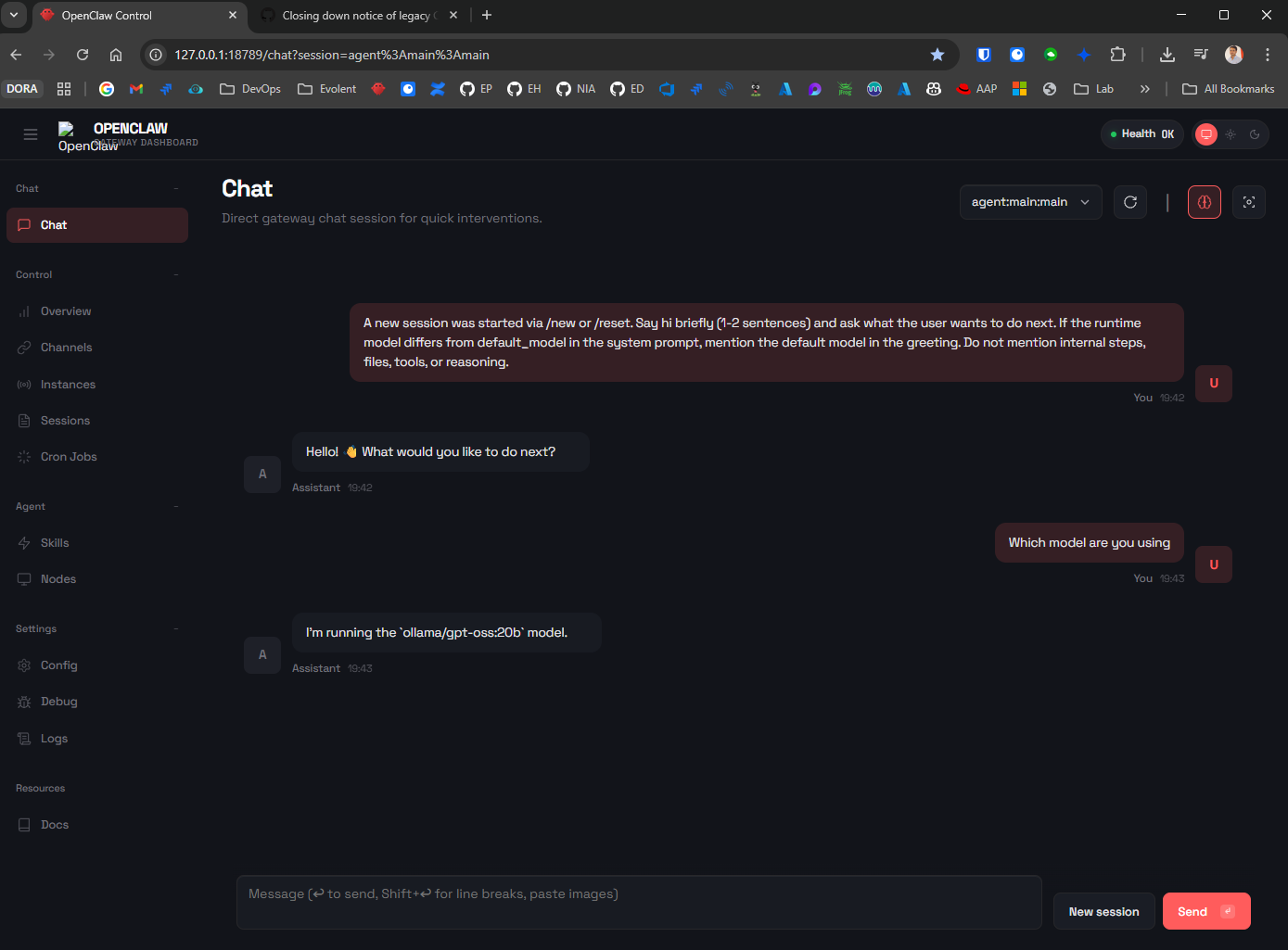
This will show you:
- Connected models (your Ollama models)
- Configured channels
- Agent status
- System information
Test with Telegram (if configured)
- Start a chat with your bot on Telegram
- Send: “hello introduce yourself”
- The bot will respond with a pairing code
- Approve the pairing:
1
openclaw pairing approve telegram <PAIRING_CODE>
- Now you can chat with your local LLM through Telegram!
How to stop OpenClaw (Gateway)
To stop the background Gateway service:
1
openclaw gateway stop
To fully remove the service:
1
openclaw gateway uninstall
To uninstall everything (recommended if the CLI still exists):
1
openclaw uninstall
Troubleshooting
Gateway Won’t Start
If you encounter issues:
1
2
3
4
5
6
7
8
# Check gateway status
openclaw gateway status

# Restart gateway
openclaw gateway restart

# Check logs
openclaw logs
If you see errors like:
gateway closed (1006 abnormal closure)Port 18789 not in use
…it usually means the Gateway isn’t running yet (or it exited). Start it in the foreground once to see why:
1
openclaw gateway --verbose
More deep diagnostics:
1
2
openclaw gateway probe
openclaw gateway status --deep
If the Gateway refuses to start due to configuration, note that it expects gateway.mode=local in ~/.openclaw/openclaw.json (use --allow-unconfigured only for ad-hoc/dev).
Model Connection Issues
1
2
3
4
5
# Verify Ollama is running
ollama list

# Test model directly
ollama run qwen3-coder:latest
Permission Issues
If you get permission errors during installation:
1
2
# Fix npm permissions (if needed)
sudo chown -R $(whoami) ~/.npm
If you’re on WSL2 and daemon installation isn’t working, confirm systemd is enabled (see prerequisites) and that systemctl --user works.
Production Considerations
Service Management
Prefer the built-in service commands (they map to launchd/systemd/schtasks depending on platform):
1
2
3
4
5
6
openclaw gateway install
openclaw gateway start
openclaw gateway stop
openclaw gateway restart
openclaw gateway status
openclaw gateway uninstall
Advanced (Linux/WSL2): the unit is typically openclaw-gateway.service and runs as a systemd user service, so the raw form is systemctl --user ....
Auto-Restart on Crashes
If you install the daemon via the wizard, systemd/launchd is generally the right place for restarts.
If you still want a simple “belt and suspenders” restart, you can schedule a periodic restart, but consider it a workaround rather than the primary mechanism.
Security Considerations
- Sandboxing: Run OpenClaw in isolated environments
- API Access: Be cautious with financial/medical data
- Network Security: Configure proper firewall rules
- Backup: Regularly backup your configuration and conversation history
Recommended Hardware
For optimal performance:
- GPU: NVIDIA RTX series (minimum 8GB VRAM, 16GB+ recommended)
- RAM: 16GB minimum, 32GB+ for larger models
- Storage: SSD with at least 50GB free space
Alternative Models
Based on community feedback, here are the best performing models:
- qwen3-coder:latest - Excellent balance, good for coding tasks
- glm-4.7:latest - Fast inference, good general purpose
- gpt-oss:20b - More capable but slower
- gpt-oss:120b - Maximum capability (requires significant hardware)
Next Steps
- Skills Configuration: Set up automated tasks and integrations
- Multi-Agent Setup: Configure multiple specialized agents
- Webhooks: Integrate with external services
- Custom Tools: Build your own automation tools
Resources
Remember: OpenClaw is a powerful tool that gives AI direct access to execute commands and send messages on your behalf. Always understand the security implications and start with sandboxed environments before production use.